Friday, October 31, 2008

Awesomely Geeky Halloween Pumpkins

So you might as well know, Halloween is my favorite holiday. But seeing as I am a bit of a geek, I thought I'd share some of these geeky Halloween gems with you while I prepare for my awesome Halloween party tonight. Enjoy!

Best pumpkin carving ever, The Death Star!
The Red Ring of Death pumpkin truly is scary.

I think this pumpkin is a Cylon...or maybe it's just a Pumpkin? I can never tell.

Super creative R2D2 Pumpkin (am I seeing a pattern of Stars Wars and obsessive geeks?)

Who loves Mario? We do!

A favorite of mine, the Pac-Man Pumpkins...

Or some Pumpkin Pi?

Maybe a Dwight Schrute pumpkin?

How about a Firefox pumpkin?

Here's an obligatory Linux Pumpkin to end it all off.

Hope you had fun!

Wednesday, October 29, 2008

MTV puts ALL music videos online

In a move near and dear to my heart, MTV is putting their entire catalog of music videos online for users to watch or even embed in their own sites. Freakin' awesome!

MTV Music expands upon the music video offerings already posted to MTV.com by offering an entire back catalogue of videos that go all the way to when music videos were born. The library includes more than 16,000 videos, sprinkled with "exclusive" MTV concert footage and MTV "Unplugged" performances that used to be all the rage. And that's just the beginning. According to a blog post on MTV's Splash Page, more videos are being added by the day, so even if your favorite Paula Abdul selections haven't been posted yet, they probably will make it up eventually.

Judging from Today's most popular videos, including Dire Straights, Duran Duran, Talking Heads, the Buggles, and other classics, it looks like this is really speaking to the generation that misses the MUSIC and not the REAL WORLD and other reality nonsense.

Like YouTube, MTV Music allows users to not only watch videos on the site, but to also leave comment, give ratings, and embed the videos on their blogs or personal websites.

Check it out here: http://www.mtvmusic.com/

And now, for one of my favorite videos of all time:

Saturday, October 25, 2008

G1 Google Android Phone has major security flaw

From NYTimes.com

One of the researchers, Charles A. Miller, notified Google of the flaw this week and said he was publicizing it now because he believed that cellphone users were not generally aware that increasingly sophisticated smartphones faced the same threats that plague Internet-connected personal computers.

Mr. Miller, a former National Security Agency computer security specialist, said the flaw could be exploited by an attacker who might trick a G1 user into visiting a booby-trapped Web site.


Read the whole article here.

I wonder how serious this really is though, since it requires the user to be tricked into visiting a "booby-trapped" website. I don't think this is as major as people are making it out to be.

Thursday, October 23, 2008

6 Tips for getting the most out of Google Android

1. Replace the Bundled Music Player With TuneWiki
Android's bundled Music program is fairly weak and clunky. Our suggestion: Ditch it and pick up TuneWiki off the Android Market. It's easier to use than the bundled Music program, and has a lot more features (such as a fun karaoke function that searches for lyrics online and runs them with your song as it plays). Of course, you can download TuneWiki to any iPhone, but only if it is jailbroken and unlocked (which would void its warranty). This difference is emblematic of one of the key distinctions between Android and the iPhone—Android doesn't ban applications that compete with or replace its own programs.

2. Use "Any Cut" To Put a Shortcut to Goog-411 On Your Home Screen
One of our favorite downloadable Android applications is a little program called Any Cut, which allows you to litter your home screen with shortcuts to any program, phone number, text-message recipient or menu setting. Use this program to create a home-screen speed dial to Goog-411—Google's free directory assistance number—to cut the number of clicks it takes to get your digits-on-demand down to one. Bonus tip: Create a shortcut to text message GOOGLE (466453) for when calling's just not convenient.

3. Play VIdeos in MPEG-4 H.264
The G1 has no built-in video player. That's what the Android Market is for. When we were testing the phone, there was only one true video playback program available: Video Player. And while this program can only play MPEG-4 movie files, we should soon see other video-playing programs that will be able to handle all sorts of codecs. However, even when these options become available, you'll still want to play your movies in MPEG-4 H.264 compression whenever possible. This is because the G1 has built-in hardware acceleration that makes this specific video format run extra smooth. Future programs will probably run Divx and Xvid and all those great files you've collected from Bittorrent, but the programs' on-the-fly decryption and viewing will be far more taxing on the software, which could mean lags.

4. Search Google Maps From Front Page Widget
The G1's default home screen features a Google search widget. While this obviously makes Google Web searches quicker, it is also is a quick way to tap into Google Maps. When you type the name of a place or location, you are given a typical Google search results page, with a map location at the top. Click this result, and the phone asks you whether you want to switch out of the browser and into the Maps program to finish your query.

5. Use the Hard Search Key
If there's one company that understands the value of search, it's Google. And one of the best parts of the G1's physical keyboard is its hard search key (the one that looks like a little magnifying glass.) Pressing it from the home screen brings up the Google search bar. This is great, but what's more interesting is its use within individual Google-made programs like YouTube and Maps, where pressing it brings up a search bar specific to that program, allowing you to find what you're looking for in an app easily and quickly.

6. Focus Before Shooting
Camera phones are notorious for their blurry shots. The G1's autofocus tries to change this: When you half-press the camera button on the side of the phone, it engages the autofocus (anybody who has autofocused with a stand-alone camera will find this familiar). When it's done focusing, a green circle pops up in the corner of the screen, letting you know it's time to take the shot by completely depressing the button. So remember when shooting to wait for the green circle for better, Facebook-worthy results.

Krunking you can believe in - Obama/McCain Dance-Off

I don't know exactly how they do this, but this is awesome enough for me to post.


Unbelievable McCain Vs. Obama Dance-Off - Watch more free videos

Wednesday, October 22, 2008

How to easily sync iCal with Google Calendars

Google has finally opened up their calendar system to sync with iCal and Mozilla Sunbird. That's good news for us out there who want to keep our calendars up to date wherever we are.

There is capability for real two-way sync of your online Gmail calendars with iCal. You can set up multiple calendars with what appears to be full iCal functionality, and have them "push" changes to Google.

    To set up CalDAV support for Google Calendar in iCal, follow these steps:

    1. Open the iCal application by going to Finder > Applications > iCal
    2. From the iCal menu bar, select Preferences.
    3. Under the Accounts tab, click the "+" sign to add an account. (Do not select any checkboxes in the Accounts tab.)
    4. In the pop-up screen, enter the following information:

      Description: This will be the title for your CalDAV calendar list
      Username: This is the complete email address you use with Google Calendar (including the part after the @ sign). If you're using Google Apps, be sure to enter your Google Apps email address.
      Password: This is the password you use to sign in to Google Calendar

    5. In the Server Options drop-down, enter [ https://www.google.com/calendar/dav/ [ your Google Calendar email address ] /user ] as your Account URL.

      For example, if the email address used to access your Google Calendar is calendarfriend@gmail.com, the Account URL would be https://www.google.com/calendar/dav/calendarfriend@gmail.com/user

      Be sure to use https in your URL, as an http address will not work.

      Server options field

    6. Click Add, and wait five to seven minutes while the initial sync takes place. (All subsequent syncs are instantaneous.)

    Your Google Calendar will now appear in iCal's list of calendars, and iCal will sync any changes to and from Google Calendar.

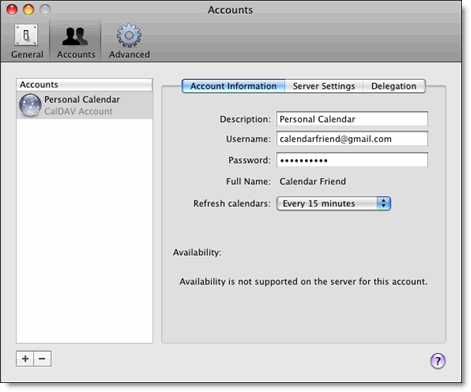
    Event information will automatically refresh every 15 minutes. You can change this interval by opening the iCal > Preferences > Accounts menu and selecting a new refresh interval under the "Refresh calendars" drop-down. Keep in mind you can also force a refresh by pressing the "Apple" and "R" keys at the same time.

    iCal Accounts menu

    Add secondary calendars

    To view secondary calendars in Apple's iCal, follow the instructions below for each calendar you'd like to enable:

    1. Sign in to Google Calendar.
    2. In the calendar list on the left, click the down-arrow button next to the appropriate calendar, then select Calendar Settings. (Alternatively, click on "Manage Calendars" at the bottom of the calendar list, then click on the name of the appropriate calendar.)
    3. In the Calendar Address section, locate the "Calendar ID."

      Calendar ID

    4. Copy the email address displayed after "Calendar ID:"
    5. Open the iCal application (Finder > Applications > iCal).
    6. Follow steps 2-4 from the Enable Google Calendar in iCal section above.
    7. Under Server Options, enter [ https://www.google.com/calendar/dav/ [ Calendar ID ] /user ] as your Account URL.

      (e.g. https://www.google.com/calendar/dav/7oddefoo1ltvq0psfhbp8vs4gc@group.calendar.google.com/user)