
1. Replace the Bundled Music Player With TuneWiki
Android's bundled Music program is fairly weak and clunky. Our suggestion: Ditch it and pick up TuneWiki off the Android Market. It's easier to use than the bundled Music program, and has a lot more features (such as a fun karaoke function that searches for lyrics online and runs them with your song as it plays). Of course, you can download TuneWiki to any iPhone, but only if it is jailbroken and unlocked (which would void its warranty). This difference is emblematic of one of the key distinctions between Android and the iPhone—Android doesn't ban applications that compete with or replace its own programs.
2. Use "Any Cut" To Put a Shortcut to Goog-411 On Your Home Screen
One of our favorite downloadable Android applications is a little program called Any Cut, which allows you to litter your home screen with shortcuts to any program, phone number, text-message recipient or menu setting. Use this program to create a home-screen speed dial to Goog-411—Google's free directory assistance number—to cut the number of clicks it takes to get your digits-on-demand down to one. Bonus tip: Create a shortcut to text message GOOGLE (466453) for when calling's just not convenient.
3. Play VIdeos in MPEG-4 H.264
The G1 has no built-in video player. That's what the Android Market is for. When we were testing the phone, there was only one true video playback program available: Video Player. And while this program can only play MPEG-4 movie files, we should soon see other video-playing programs that will be able to handle all sorts of codecs. However, even when these options become available, you'll still want to play your movies in MPEG-4 H.264 compression whenever possible. This is because the G1 has built-in hardware acceleration that makes this specific video format run extra smooth. Future programs will probably run Divx and Xvid and all those great files you've collected from Bittorrent, but the programs' on-the-fly decryption and viewing will be far more taxing on the software, which could mean lags.
4. Search Google Maps From Front Page Widget
The G1's default home screen features a Google search widget. While this obviously makes Google Web searches quicker, it is also is a quick way to tap into Google Maps. When you type the name of a place or location, you are given a typical Google search results page, with a map location at the top. Click this result, and the phone asks you whether you want to switch out of the browser and into the Maps program to finish your query.
5. Use the Hard Search Key
If there's one company that understands the value of search, it's Google. And one of the best parts of the G1's physical keyboard is its hard search key (the one that looks like a little magnifying glass.) Pressing it from the home screen brings up the Google search bar. This is great, but what's more interesting is its use within individual Google-made programs like YouTube and Maps, where pressing it brings up a search bar specific to that program, allowing you to find what you're looking for in an app easily and quickly.
6. Focus Before Shooting
Camera phones are notorious for their blurry shots. The G1's autofocus tries to change this: When you half-press the camera button on the side of the phone, it engages the autofocus (anybody who has autofocused with a stand-alone camera will find this familiar). When it's done focusing, a green circle pops up in the corner of the screen, letting you know it's time to take the shot by completely depressing the button. So remember when shooting to wait for the green circle for better, Facebook-worthy results.
Thursday, October 23, 2008
6 Tips for getting the most out of Google Android
Wednesday, October 22, 2008
How to easily sync iCal with Google Calendars
Google has finally opened up their calendar system to sync with iCal and Mozilla Sunbird. That's good news for us out there who want to keep our calendars up to date wherever we are.
There is capability for real two-way sync of your online Gmail calendars with iCal. You can set up multiple calendars with what appears to be full iCal functionality, and have them "push" changes to Google.
- Open the iCal application by going to Finder > Applications > iCal
- From the iCal menu bar, select Preferences.
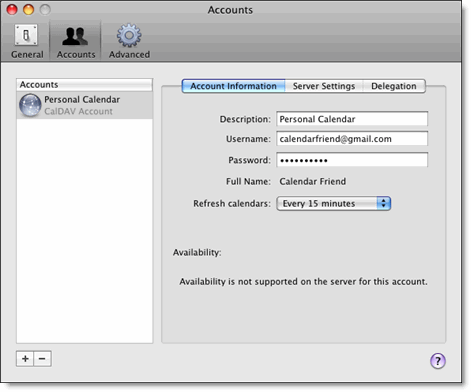
- Under the Accounts tab, click the "+" sign to add an account. (Do not select any checkboxes in the Accounts tab.)
- In the pop-up screen, enter the following information:
Description: This will be the title for your CalDAV calendar list
Username: This is the complete email address you use with Google Calendar (including the part after the @ sign). If you're using Google Apps, be sure to enter your Google Apps email address.
Password: This is the password you use to sign in to Google Calendar - In the Server Options drop-down, enter [ https://www.google.com/calendar/dav/ [ your Google Calendar email address ] /user ] as your Account URL.
For example, if the email address used to access your Google Calendar is calendarfriend@gmail.com, the Account URL would be https://www.google.com/calendar/dav/calendarfriend@gmail.com/user
Be sure to use https in your URL, as an http address will not work.
- Click Add, and wait five to seven minutes while the initial sync takes place. (All subsequent syncs are instantaneous.)
- Sign in to Google Calendar.
- In the calendar list on the left, click the down-arrow button next to the appropriate calendar, then select Calendar Settings. (Alternatively, click on "Manage Calendars" at the bottom of the calendar list, then click on the name of the appropriate calendar.)
- In the Calendar Address section, locate the "Calendar ID."

- Copy the email address displayed after "Calendar ID:"
- Open the iCal application (Finder > Applications > iCal).
- Follow steps 2-4 from the Enable Google Calendar in iCal section above.
- Under Server Options, enter [ https://www.google.com/calendar/dav/ [ Calendar ID ] /user ] as your Account URL.
(e.g. https://www.google.com/calendar/dav/7oddefoo1ltvq0psfhbp8vs4gc@group.calendar.google.com/user)
To set up CalDAV support for Google Calendar in iCal, follow these steps:
Your Google Calendar will now appear in iCal's list of calendars, and iCal will sync any changes to and from Google Calendar.
Event information will automatically refresh every 15 minutes. You can change this interval by opening the iCal > Preferences > Accounts menu and selecting a new refresh interval under the "Refresh calendars" drop-down. Keep in mind you can also force a refresh by pressing the "Apple" and "R" keys at the same time.
Add secondary calendars
To view secondary calendars in Apple's iCal, follow the instructions below for each calendar you'd like to enable:
Tuesday, September 16, 2008
The Google Phone is here, T-Mobile to introduce phone with Google's Android software next Tuesday

T-Mobile USA said today that it would unveil the much-anticipated mobile phone loaded with Google's Android software next Tuesday at a press conference in New York. The "G1," which is being manufactured by HTC, won't go on sale until October. But expect T-Mobile to finally divulge some key details such as pricing.
T-Mobile is just the first carrier to market the phone. Other cellphone manufacturers and carriers are expected to dial for dollars using the Google brand as bait, but they apparently have hit some snags. The Android phone is being positioned as a rival to Apple's iPhone and Research in Motion's BlackBerry.
For Google, this seems like a no-lose proposition. The Internet search giant wants to make sure that all of its services, including its lucrative advertising, are available on all cellphones. So it created software for mobile phones that does that.
Google showed off the handset at a developer conference in London this morning.
Could this be a true iPhone rival? I hope so.
As with Microsoft, and in contrast to Apple, there will be no attempt to lock down the system to prevent people running whatever applications they like.
According to The Wall Street Journal, T-Mobile is expected to announce the phone on September 23. The story says:
See the introduction video here:The phone's manufacturer, HTC Corp., forecasts sales that are rosier than analysts' estimates. HTC says it expects to ship 600,000 to 700,000 units of the smart phone, dubbed the Dream, this year, a person close to the situation said Monday. The target exceeds analysts' estimates of 300,000 to 500,000.
Monday, September 1, 2008
Google's new web browser not compatible with Apple OS X or Linux
Google has announced a new web browser called Chrome to compete with Firefox, Internet Explorer, and Opera. However, the new browser is not going to be available for people running Apple's OS X operating system or Linux.
Does the world really need another web browser? Where is Chrome's advantage?
Google Chrome is said to be redesigned completely from scratch and promises to load pages faster and more securely. It also includes a new engine for loading interactive JavaScript code, dubbed V8, that is designed to run the next generation of not-yet-invented Web applications.
Chrome is going to be available for downloading Tuesday in more than 100 countries for computers running on Microsoft’s Windows operating system only. Google said it’s still working on versions compatible with Apple Inc.’s Mac computer and the Linux operating system.
Google is touting Chrome as a more sophisticated Web browser better suited for displaying the dynamic and interactive content blossoming on the Web as people migrate from television, radio and newspapers.
Personally, since I'm an Apple user, and since I'm completely dependent on Firefox's plug-in architecture, I'll be passing on Chrome for now. It will be an interesting project to follow however.


 Posts

